Report Templates
Report templates define reusable report layouts with pages, components, cover/header/footer, and styling. They are the starting point for project reports.
Accessing Report Templates
Navigate to Templates → Reports in the org-scoped sidebar.
Route: /org/:id/templates/reports
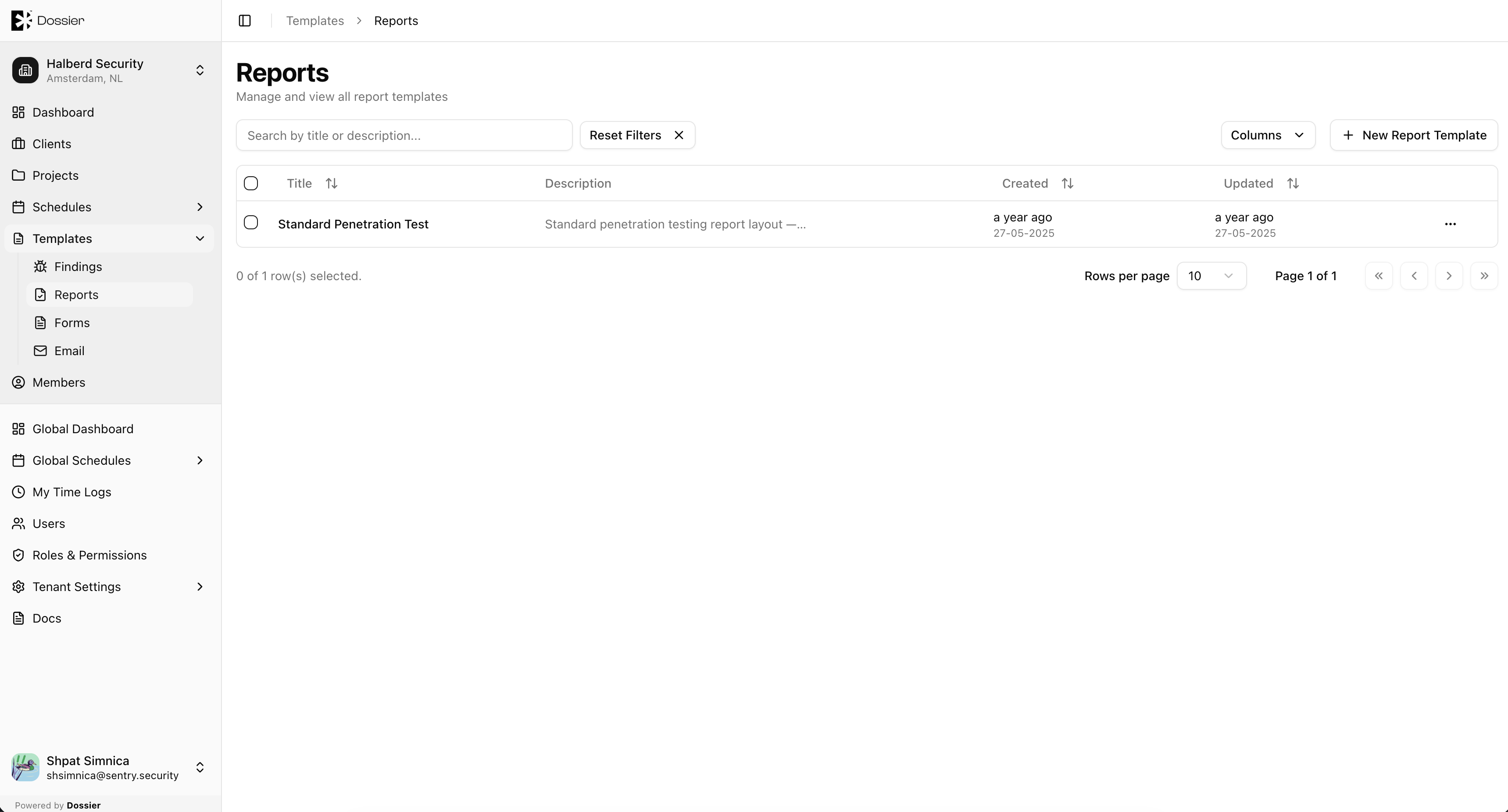
Creating a Report Template
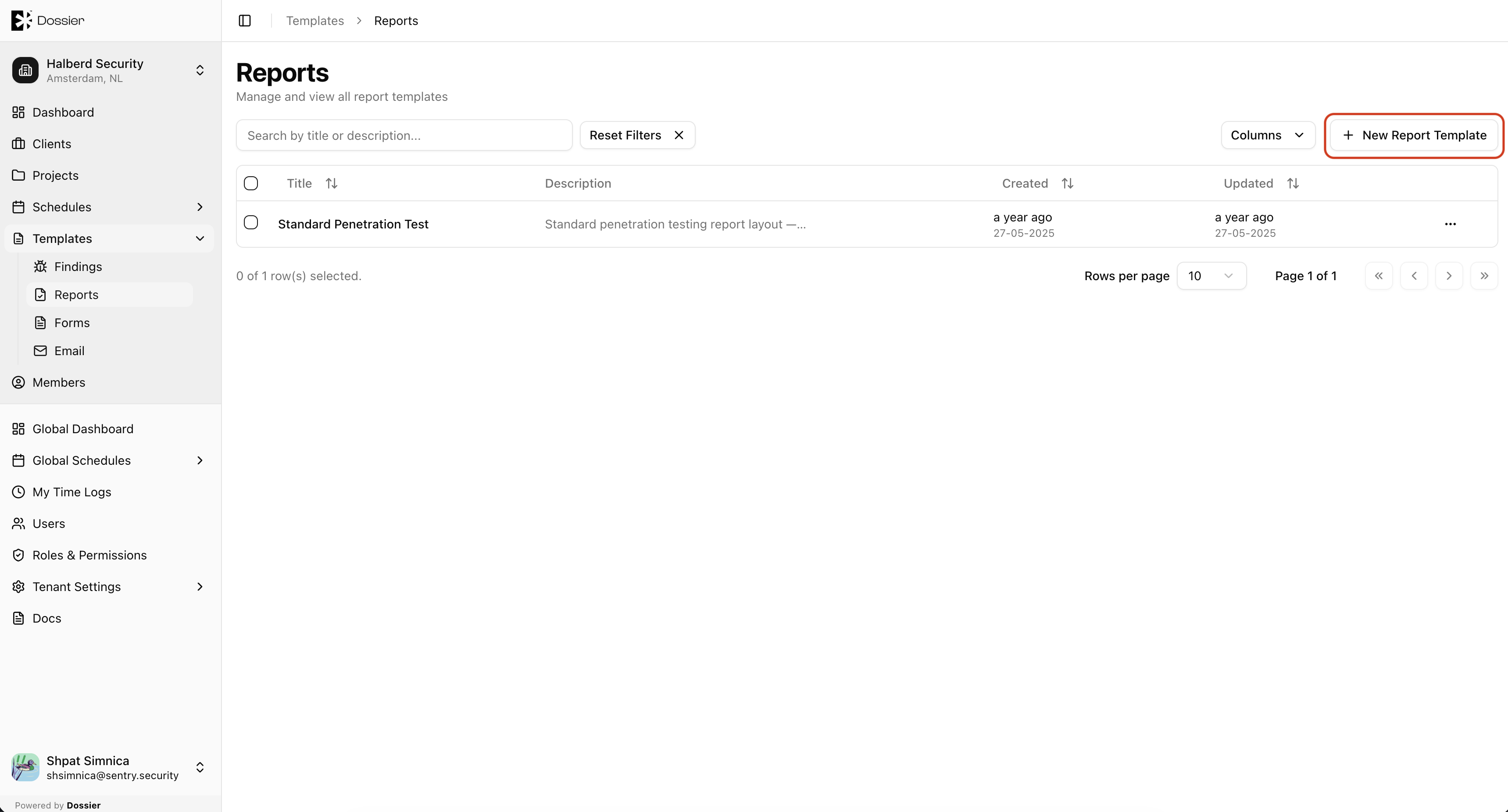
Step 1: Click New Report Template
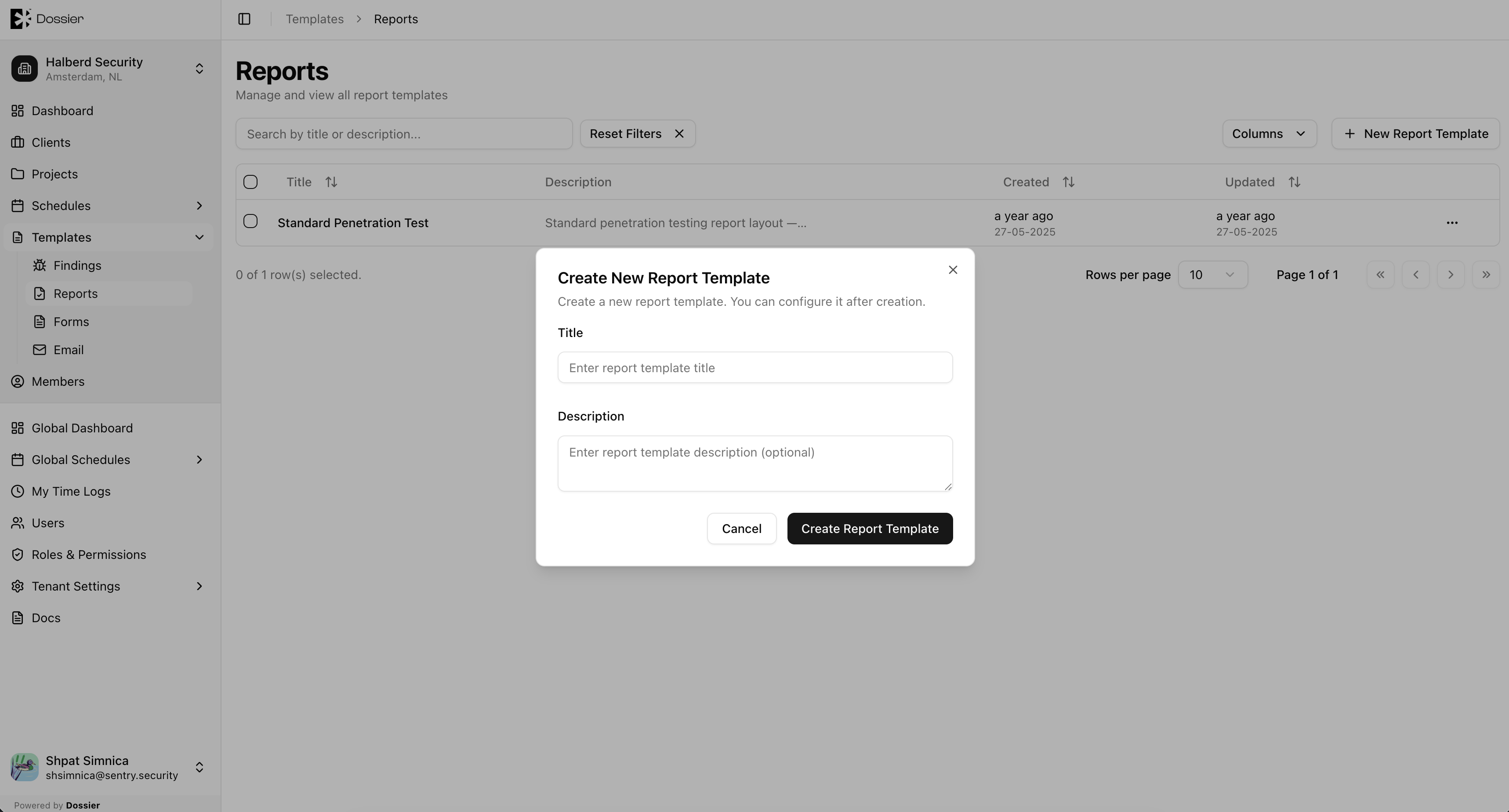
Step 2: Enter a title and click Create
Step 3: Open the report editor
Click the template row to open the report editor.
Route: /report-editor?target=report-template&id=:templateId
Editing a Report Template
The report editor for templates works identically to project reports:
| Section | Description |
|---|---|
| Pages | Add and edit report pages |
| Components | Create reusable content blocks |
| Static pages | Configure cover, header, footer, and styles |
| Settings | Template metadata |
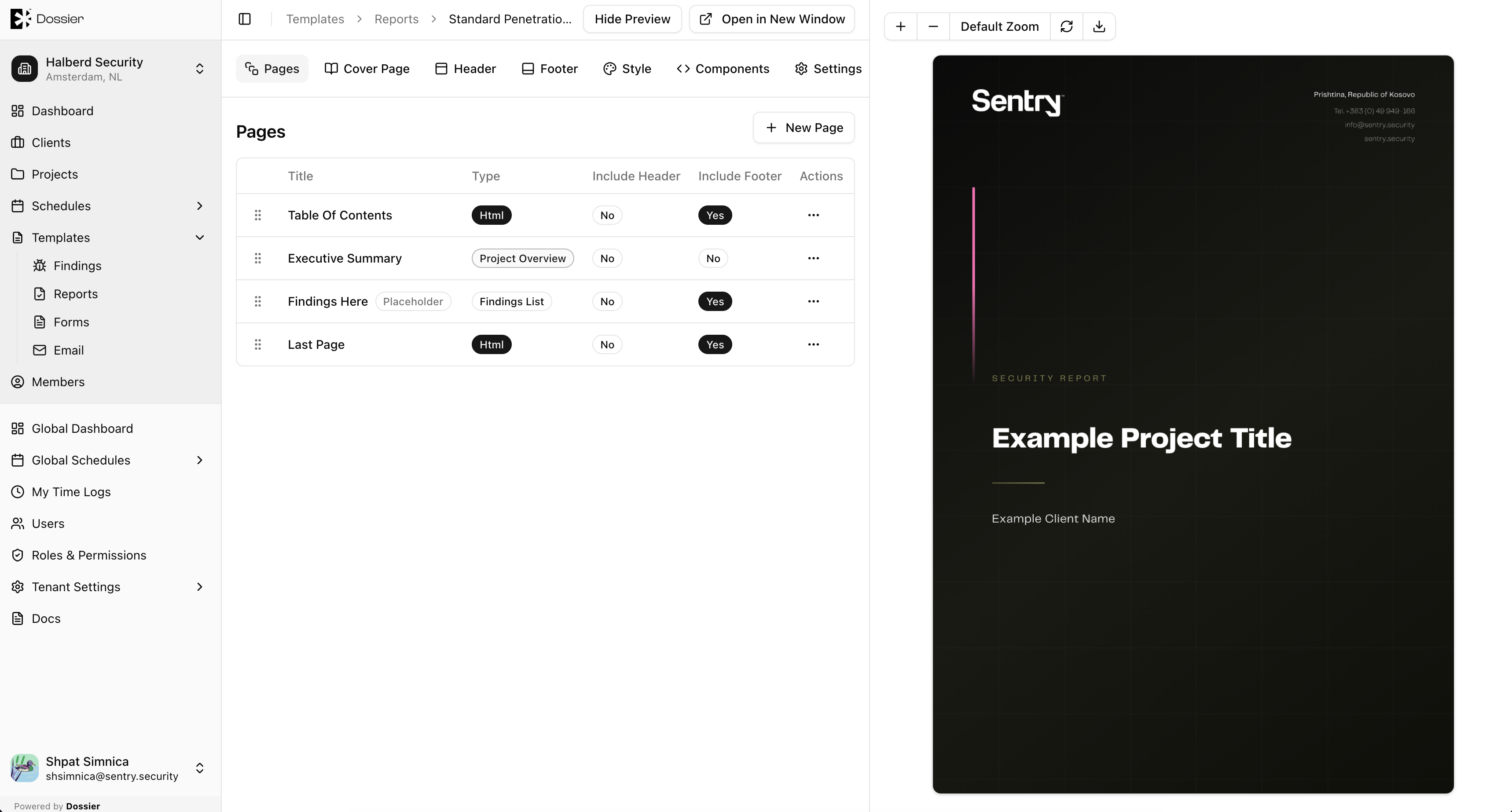
See Manage Reports for detailed editor instructions.
Deleting a Template
Use the row action menu or bulk delete. Confirm in the dialog.
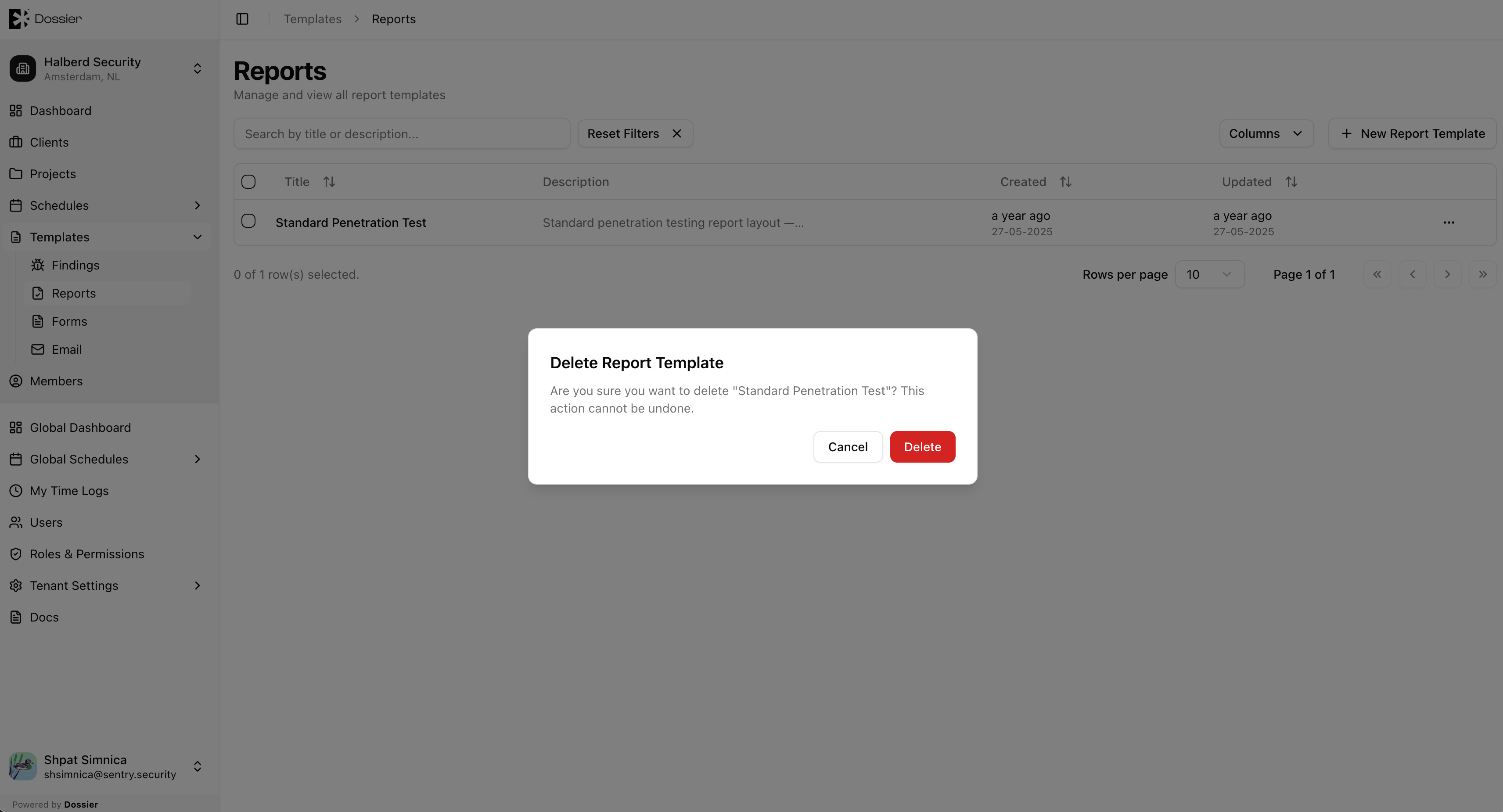
Deleting a report template does not affect project reports that were already created from it.
Importing into a Project
From a project's Reports list, click Import Template and select a report template.
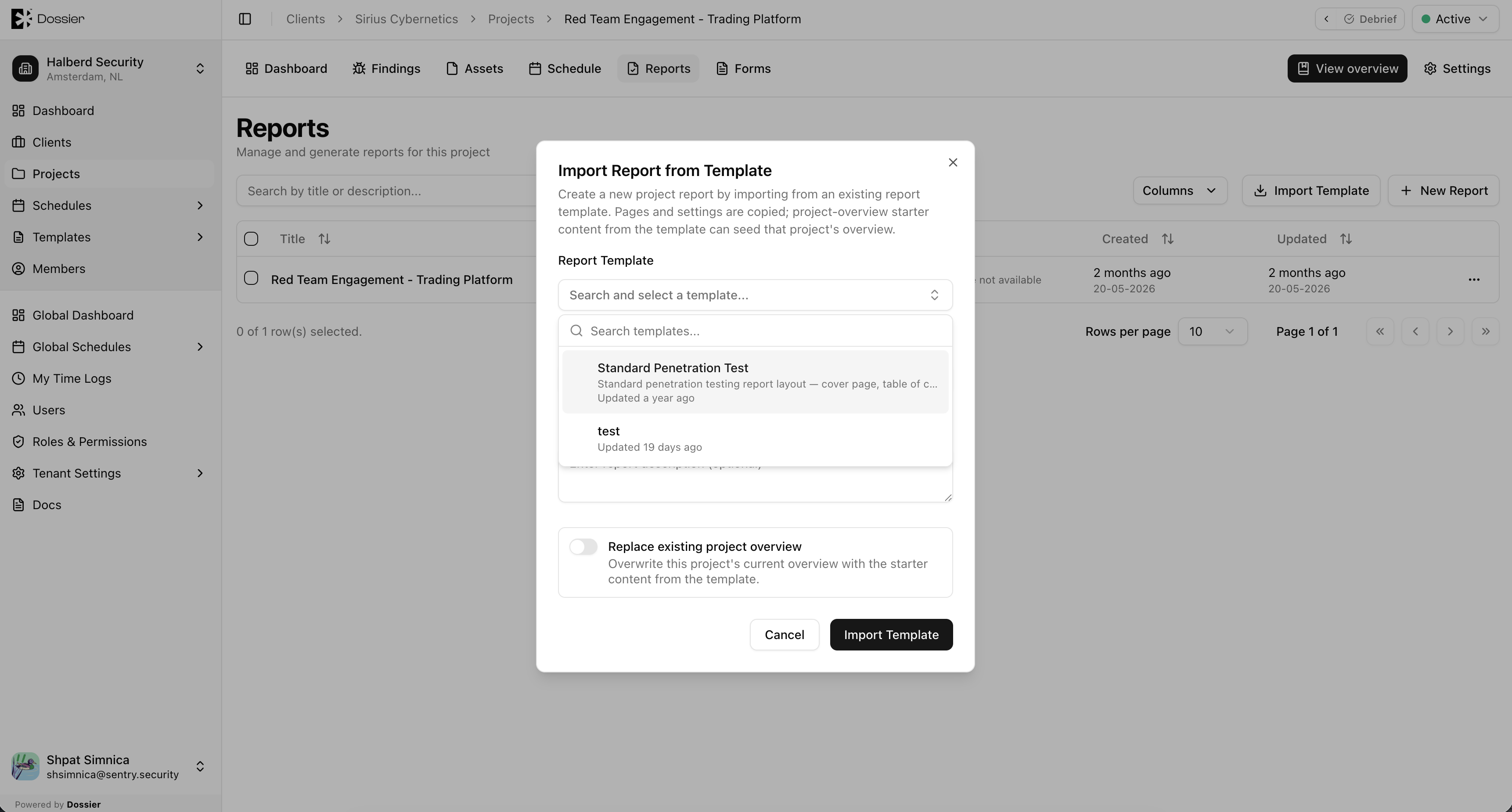
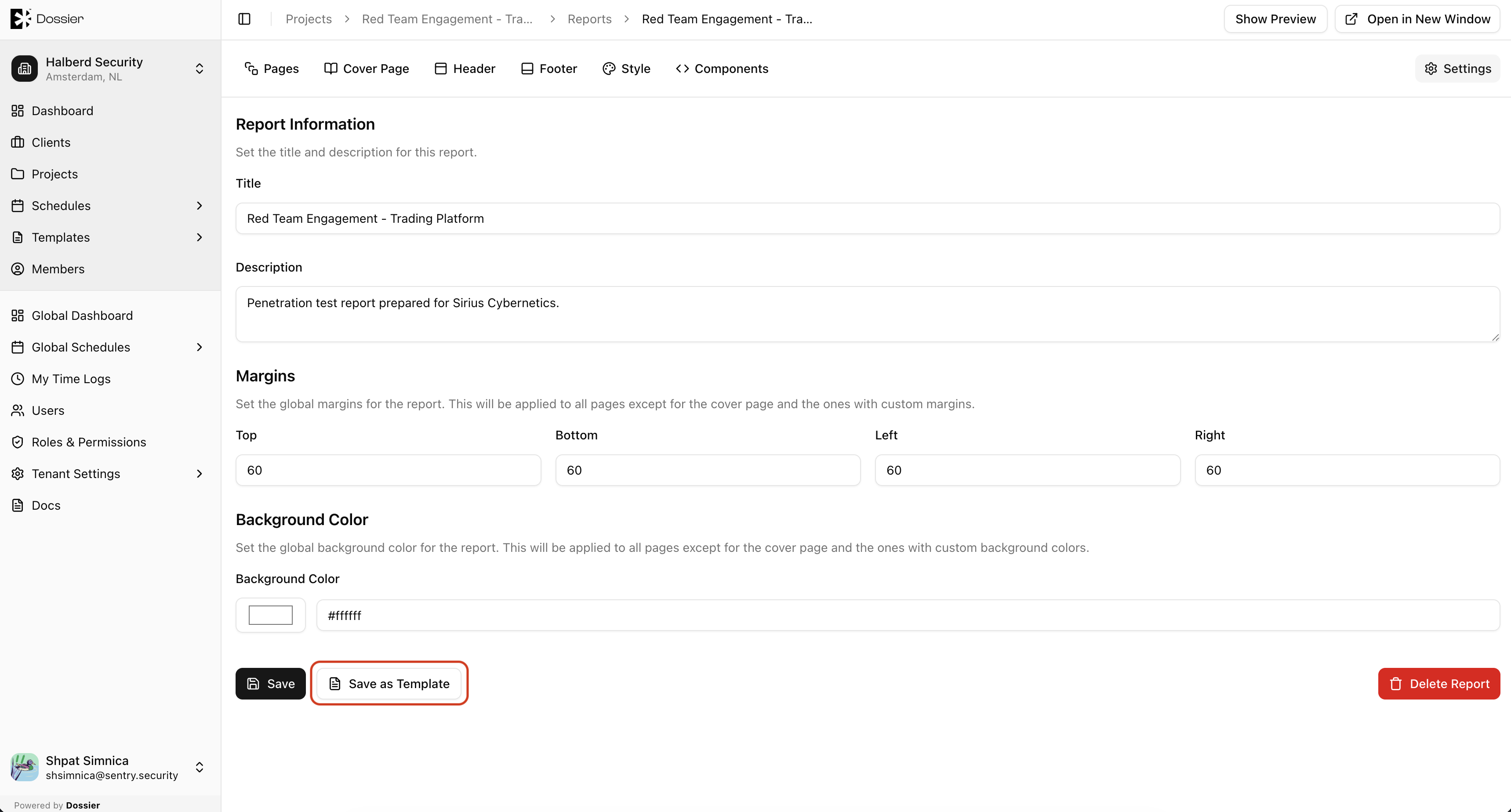
Saving a Project Report as a Template
From the report editor for a project report, use Save as Template to copy the report structure into a new template.